 Skip to content

 ORDER HELPER
Order workflow · Guide 6 of 8
Review, build and send an order
Turn verified product data into a controlled order, choose the correct supplier and complete one final check before the email is sent.
The control point
Check first. Build second. Send only when ready.
The review workspace sits between imported supplier data and a real business email. It gives your team a final opportunity to correct the order before the supplier receives it.
Manage mode
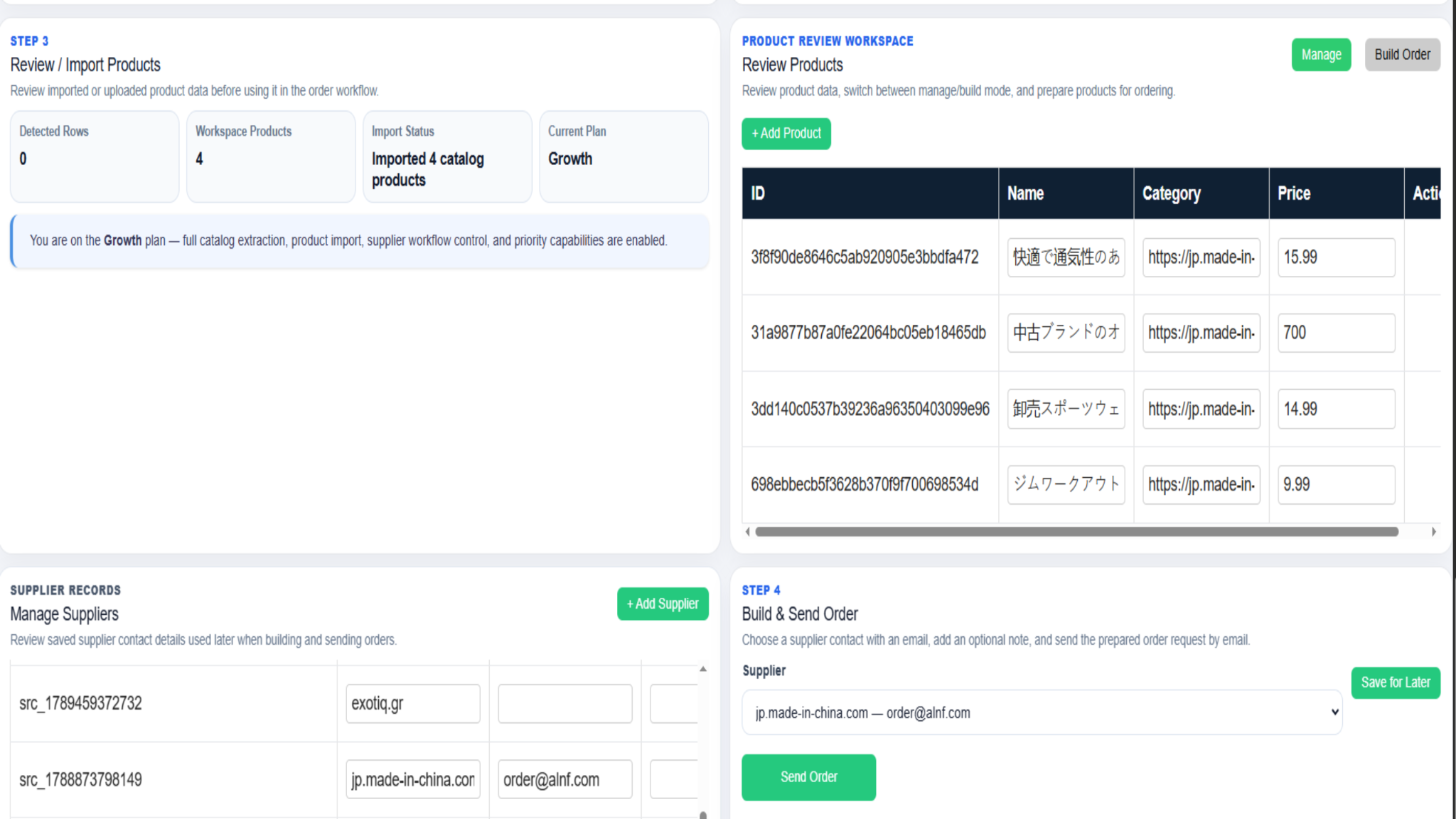
Review the product workspace before building
Start in Manage mode. Compare the import result with the supplier source and correct anything that should not enter the order workflow.
Build Order mode
Create the order draft in five controlled steps
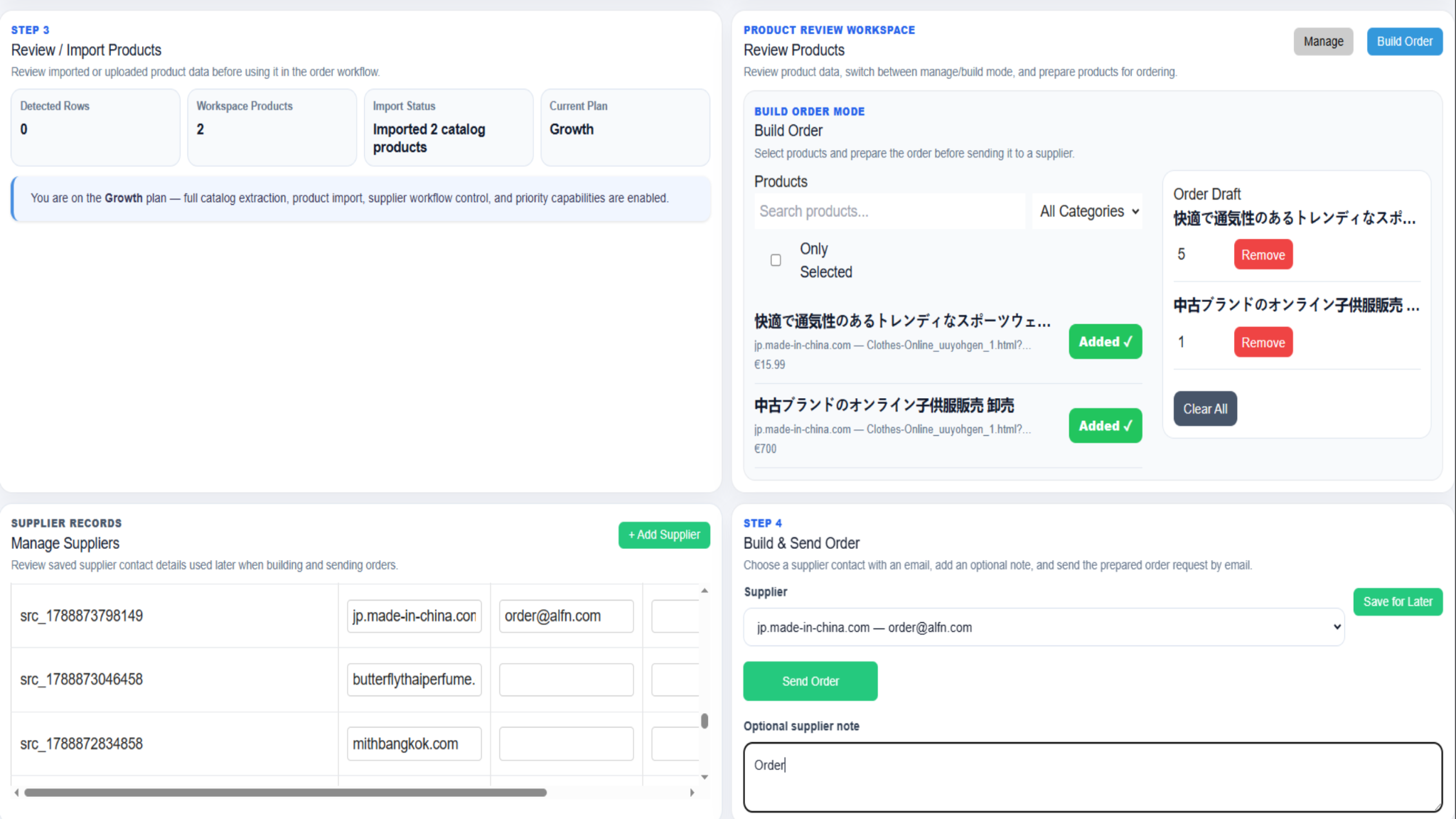
The draft remains editable until you select Send Order. Use this stage to confirm the contents, quantities and supplier.
Find the required products
Use product search and the category filter to narrow the workspace to the items you need.
Add products to the order draft
Select each intended item. Use Only Selected when you want to review the products already added.
Set and verify the quantities
Enter the required quantity for every order line. Remove an incorrect item or use Clear All if the draft must be rebuilt.
Choose the correct supplier
Select the intended supplier record and confirm that the displayed email address is the correct order contact.
Add an optional supplier note
Include only information the supplier should receive, such as a delivery instruction or a short order reference. Keep internal comments in Supplier CRM notes.
Draft decision
Not ready to send? Keep it as a draft.
A prepared draft and a sent order are not the same. Choose the action that matches the real status of the work.
Save for Later
Use this when information still needs confirmation or another team member must review the order. Saving does not send the order to the supplier.
Send Order
Use this only after the final checklist is complete. The selected supplier can then receive and act on the real order email.
Workflow progress
Step 4 completes the ordering journey
The green stages show that supplier setup, catalogue scanning and product review have been completed before Build & Send Order becomes the active step.

The completed steps give the user a clear visual checkpoint before the final business action.
Final control
Complete this check before selecting Send Order
Pause for a short final review. A few seconds here can prevent an incorrect quantity, recipient or instruction from reaching the supplier.
Final five-point checklist
- The order contains only the intended products.
- Every quantity is correct and commercially sensible.
- The correct supplier has been selected.
- The supplier email address is complete and accurate.
- The optional note contains only information intended for the supplier.
After sending
Wait for confirmation and keep the Order ID
Do not close the page immediately after selecting Send Order. Wait for the system result and retain the Order ID so the order can be followed through Supplier CRM.
Ready to prepare the order?
Open Order Helper and complete the review before sending. For help with a sent order, email support@aibuildhubs.com and include the Order ID.