 Skip to content

 ORDER HELPER
Product import · Guide 4 of 8
Import a controlled product list with CSV
Use the current Order Helper structure, upload clean supplier data and review every row before the products enter a real order.
Why use CSV?
A practical route for data your team already controls
CSV is useful when a supplier or your own team maintains a product list and catalogue scanning is not the best source.
File preparation
Start from the current Order Helper product structure
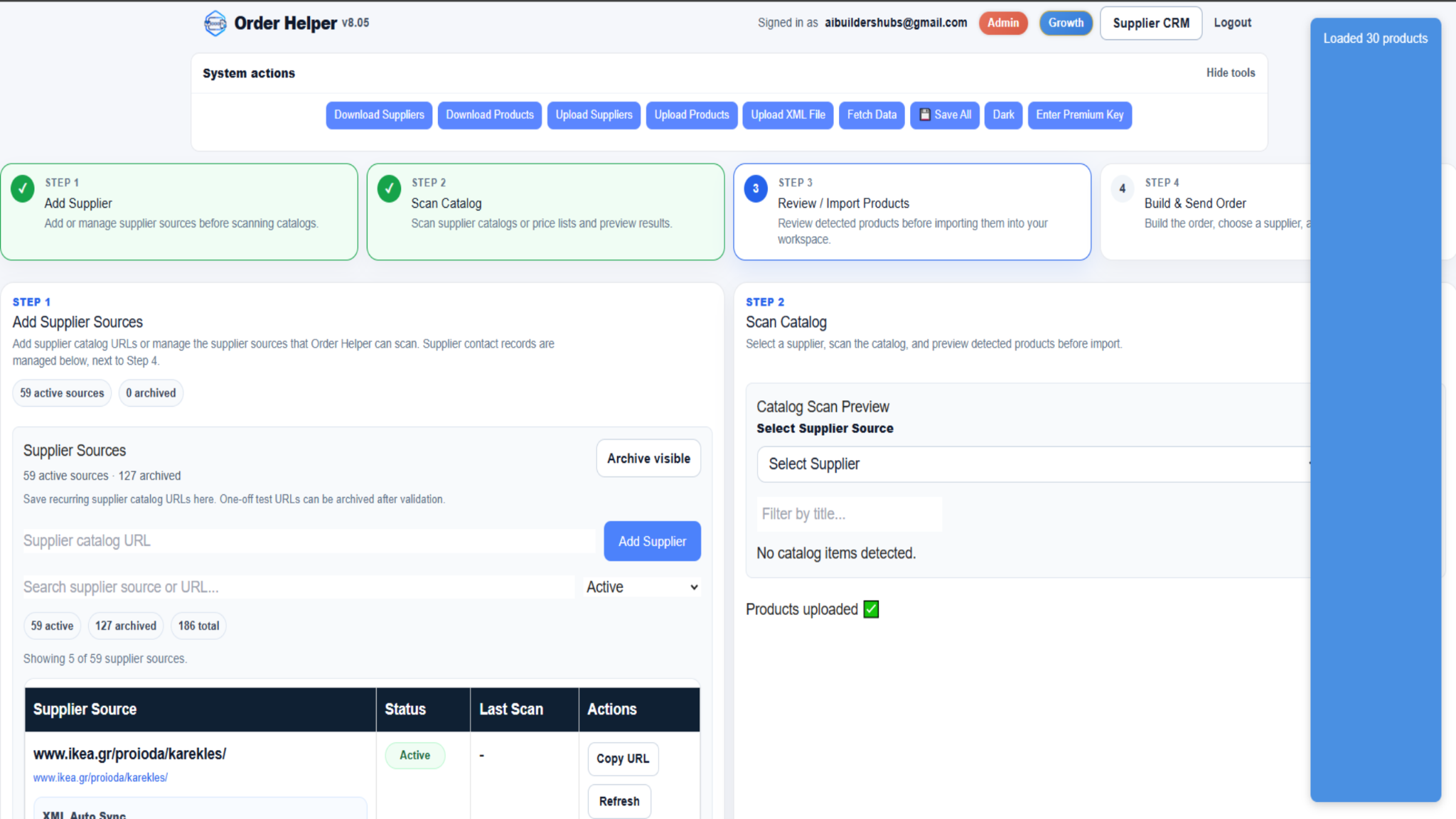
Select Download Products whenever you need a current reference file. Keep the downloaded column names unchanged.
Example only. Always use the column structure in the latest file downloaded from your Order Helper account.
Upload workflow
Upload, verify and review in five steps
Order Helper validates the file structure and shows the imported information. Your review remains the final control point.
Download the current product file
Use Download Products when you need a fresh example of the accepted structure.
Prepare and save the CSV
Add or update the supplier products, complete the data checks above and save the file using UTF-8 encoding.
Select Upload Products
Choose the completed CSV file and allow Order Helper to process it. Do not close the page while the upload is being handled.
Confirm the preview and row count
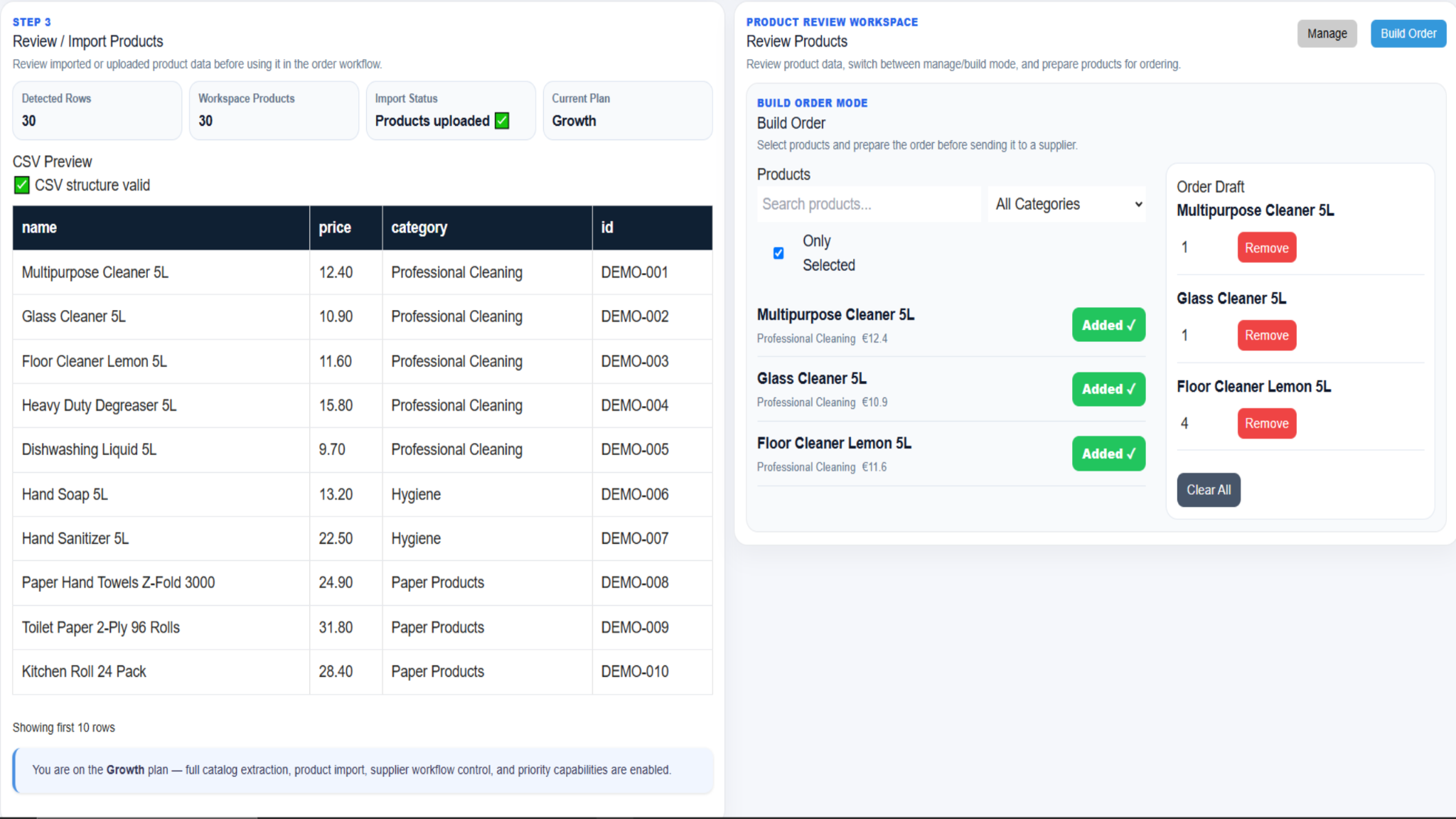
Look for the valid-structure confirmation, compare the detected row count with your source file and inspect the displayed product data.
Review products before building the order
Open the product workspace, correct or remove unsuitable information and move to Build Order only when the imported data is ready.
Successful import
What a completed CSV upload should show
The workspace should confirm the upload and make the imported products available for review and order preparation.
- A valid CSV structure message.
- A detected-row count that matches the intended data.
- Product names, prices, categories and identifiers available for review.
- Products visible in the workspace before order building.
Quick troubleshooting
If the CSV file is rejected
Return to the latest downloaded product file and compare its structure with the file you attempted to upload.
Ready to import your product list?
Open System actions, use the current product structure and select Upload Products when the CSV is ready.