 Skip to content

 ORDER HELPER
Supplier setup · Guide 3 of 8
Add the right supplier source, then scan before you import
Save a public catalogue or price-list source, confirm the supplier contact and review the detected products before they enter your workspace.
Before you begin
Confirm that the source is usable
A correct source and supplier contact prevent wasted scans and reduce the risk of sending an order to the wrong address.
Step 1
Save the supplier source and contact
Order Helper separates the location used to collect product data from the contact record used later to send the order.
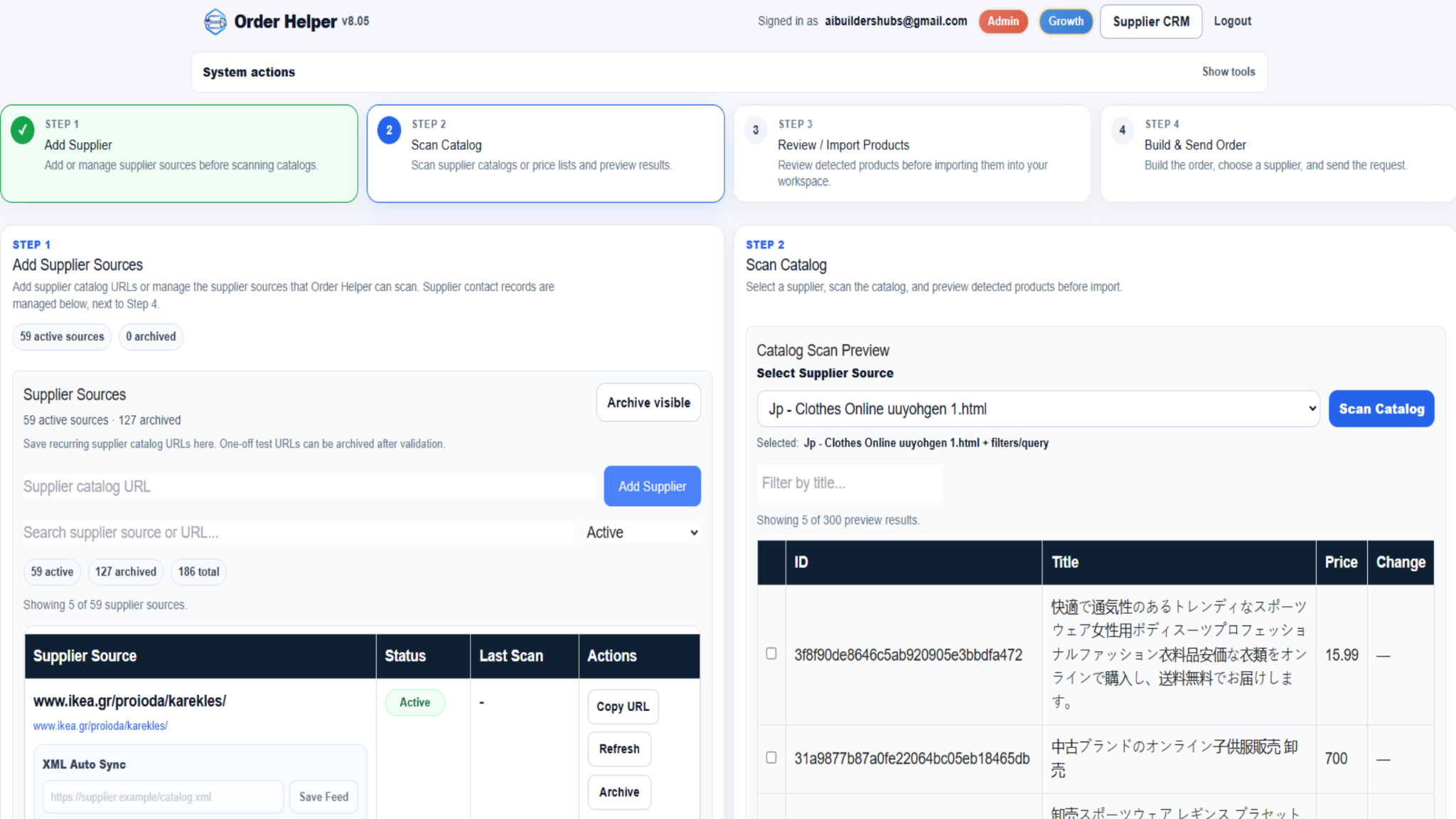
Add the catalogue source
- Copy the public catalogue or price-list URL provided by the supplier.
- Paste the full address into the Supplier catalogue URL field.
- Select Add Supplier.
- Confirm that the source appears in the saved Supplier Sources list.
Confirm the contact details
- Open the Manage Suppliers area below the product workspace.
- Find the supplier record that will be used for ordering.
- Check the supplier name and email address carefully.
- Save any correction before you build or send an order.
Step 2
Scan the catalogue and inspect the preview
The scan produces a preview for review. It does not remove the need to check the selected source and its product information.
Run the scan
- Open Catalog Scan Preview.
- Select the correct saved supplier source from the list.
- Select Scan Catalogue and wait for the preview.
- Use the title filter when you need to inspect specific results.
- Check the detected information before selecting products for import.
Quick troubleshooting
If no products are detected
Start with the source itself. Most scan problems come from restricted access or an address that does not point to the actual catalogue.
Ready to scan a supplier catalogue?
Open Order Helper, save the source under Step 1 and select it in the Step 2 scan preview.