Manage Supplier Communication with Supplier CRM

← Order Helper Help Centre
Order Helper logo ORDER HELPER

Supplier management · Guide 7 of 8

Manage supplier communication with Supplier CRM

Bring supplier status, order history, delivery signals, inbound replies and internal team notes into one structured workspace.
About 9 minutes Supplier relationship history
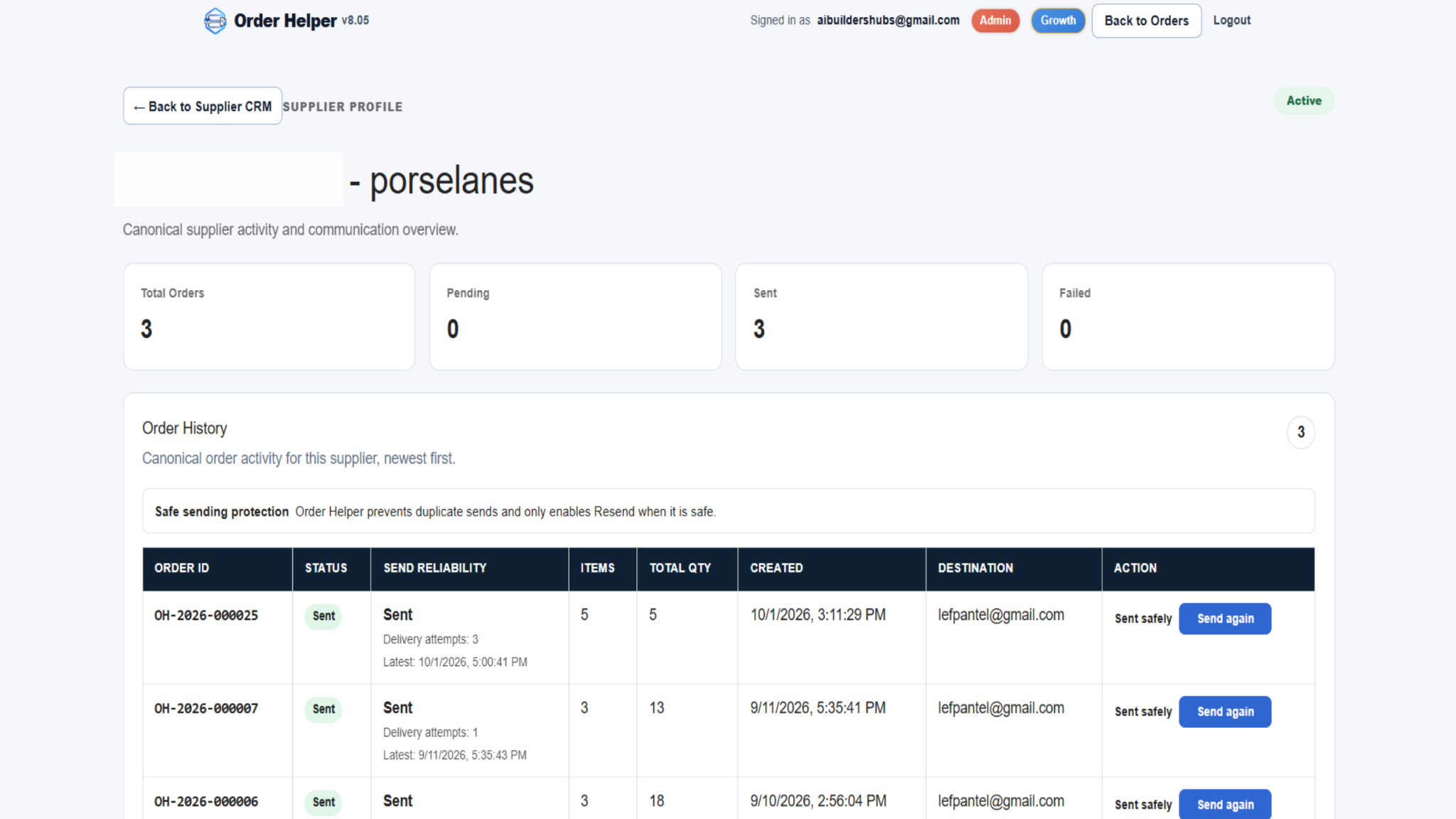
Order Helper Supplier CRM profile with order history and safe resend controls
One supplier profile with order history and delivery context · Select the image to enlarge

One operational record

See the relationship, not just the last email

Supplier CRM connects order activity with communication context, helping the next team member understand what happened without searching across separate inboxes and spreadsheets.

Supplier statusSee whether a supplier record is active and available for ongoing work.
Order signalsReview total, pending, sent and failed orders from one view.
Communication contextConnect inbound replies with the relevant supplier and Order ID.
Team memoryKeep short internal operational notes beside the supplier history.

Supplier list

Find the supplier and identify what needs attention

Start from the Supplier CRM list. Search directly or use the status filter, then compare the order and communication signals before opening the profile.
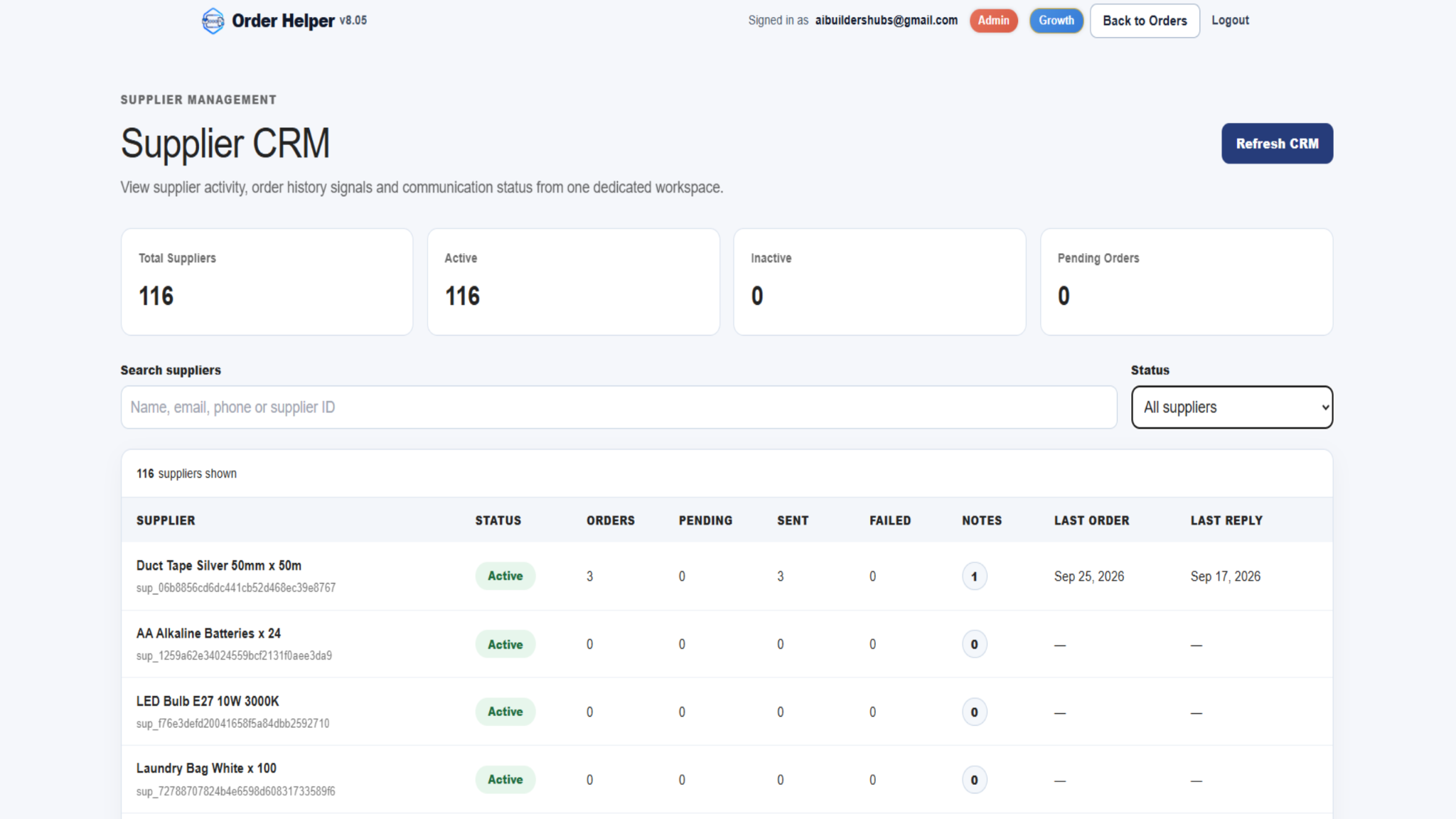
Order Helper Supplier CRM list with supplier status, order counts, notes, last order and last reply
The CRM list combines supplier status, order activity, notes, the latest order and the latest reply.
Search by supplier name, email address, telephone number or supplier ID.
Use the status filter to narrow the list to the records you need.
Compare Orders, Pending, Sent and Failed before deciding the next action.
Use Last Order and Last Reply to identify a supplier that may need follow-up.
Check the Notes count for existing internal context.
Select Refresh CRM when you need the latest available view.

Supplier profile

Open the complete operational history

The supplier profile gives context for each order and makes it easier to verify what was sent, when it was created and which destination was used.

Order identificationUse the Order ID as the reference for tracking, replies and support.
Order contentReview item count, total quantity and creation time for each order.
Delivery contextCheck status, delivery attempts, latest attempt and destination before taking action.

Use Send again only after checking the full order row

Order Helper applies safe-sending protection and presents the resend action with the order history. Before using it, confirm the Order ID, status, destination and delivery information. Never resend simply because a supplier has not replied yet.

Reply timeline and internal notes

Separate supplier communication from team-only context

Inbound replies and internal notes serve different purposes. Use the timeline to understand what the supplier sent and notes to preserve concise operational context for your team.
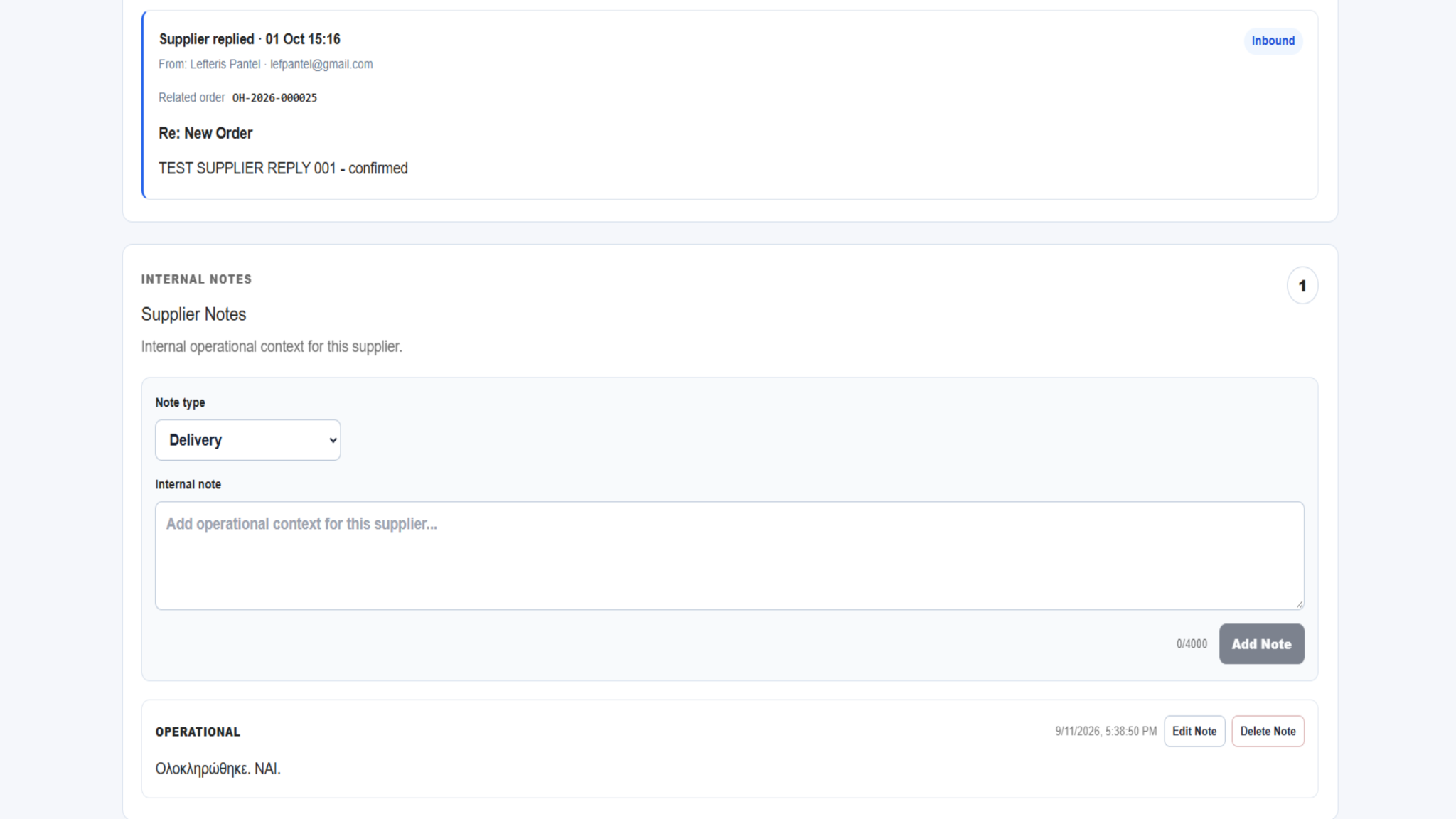
Inbound supplier reply connected to an Order ID and the internal Supplier Notes area in Order Helper
An inbound reply is connected to the related Order ID, while internal notes remain in a separate team-only area.

Reply Timeline

Review the sender, date, related Order ID, subject and reply content. Use these details to understand which order the supplier is discussing.

Internal Notes

Select a suitable note type and add short, factual context that will help your team continue the relationship. Notes can be edited or deleted when the information changes.

Good CRM practice

Keep the record useful for the next person

The value of Supplier CRM grows when every team member records consistent, relevant information and checks the existing history before acting.

Write factual notesRecord the operational fact, decision or next action without unnecessary commentary.
Use Order IDsInclude the relevant Order ID whenever a note or support request concerns a specific order.
Check before resendingReview the status, destination, latest attempt and reply timeline before another delivery.

Quick troubleshooting

If the CRM does not show what you expect

Refresh the CRM and verify the supplier and Order ID before changing data or attempting another send.

Supplier is not foundSearch by email address or supplier ID, clear the status filter and select Refresh CRM.
Counts look outdatedSelect Refresh CRM, then reopen the supplier profile before relying on the totals.
A reply is not visibleConfirm that you opened the correct supplier and related Order ID. Refresh the CRM before contacting support.
Send again is unavailableDo not try to bypass the protection. Review the delivery status and use the normal order workflow if a genuinely new order is required.
The destination is wrongDo not resend. Correct and verify the supplier contact information before creating or sending another order.

Ready to review supplier activity?

Open Supplier CRM and start from the supplier record. For support, email support@aibuildhubs.com and include the relevant Order ID.

Open Order Helper ↗
Scroll to Top